
Helpful Resources
Technical requirements
- Device: Laptop or desktop computer with a minimum screen resolution of 1024 × 768. Many of our more recent simulations are compatible with iPads, tablets, and mobile devices.
- Internet: High-speed internet connection (DSL/Cable/Fiber).
- Operating System: Windows 7 or newer, Mac OS X 11 or newer.
- Web browser: Latest version of Chrome, Firefox, Safari, or Microsoft Edge. Internet Explorer is no longer supported. We strongly recommend disabling any ad blockers while using the simulations, or allowing forio.com.
Network compatibility
We find that 99% of networks are fully compatible with Forio’s simulations. If you’re on a network with strict security rules, check with your IT department that it allows:
- Standard HTTPS (port 443) requests to forio.com and other domains
- All REST web service calls, including GET, POST, PATCH, and DELETE
- WebSocket connections over HTTPS (port 443) with long timeouts
Troubleshooting
Although technical issues with this simulation are rare, if you run into any problems, try the following:
- Refresh your browser
- Close all browser windows and tabs. Reopen and log in again.
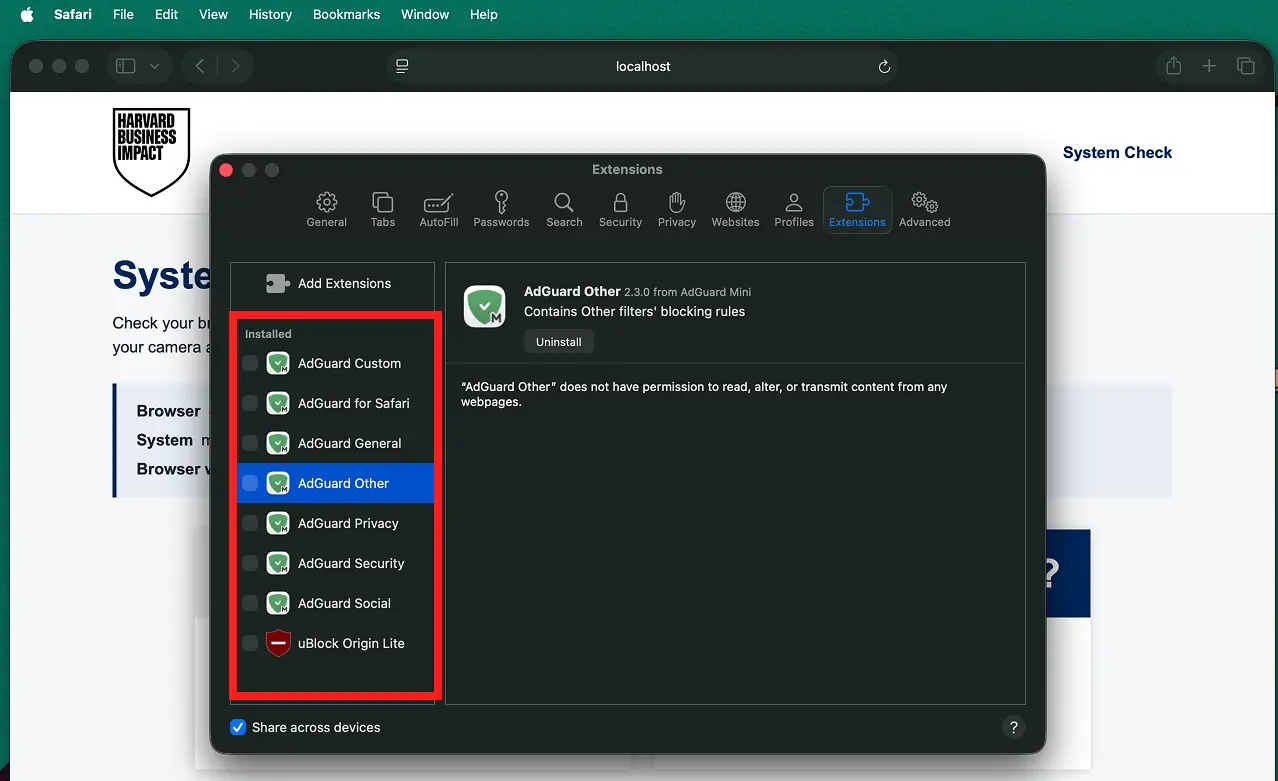
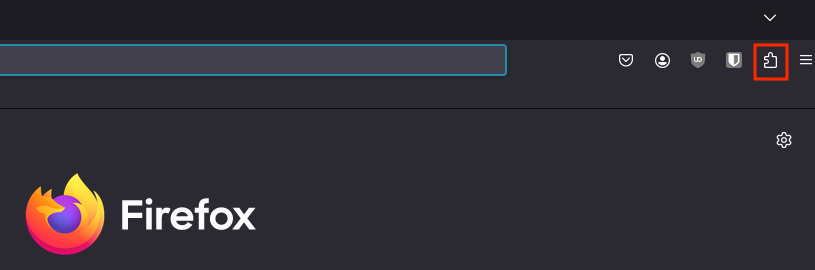
- Disable browser extensions
- Open a private, InPrivate, or incognito window and sign in to the simulation there. In Safari, choose File → New Private Window. In Chrome, Edge, and Firefox, select the rightmost icon (three dots or lines) and choose New incognito/InPrivate/private window.
- Switch to a different browser and sign in there
Update your browser
Open your browser’s menu and choose Help or About to check its version and install an update. Restart the browser after updating. Chrome 120 or later, Edge 124 or later, Firefox 128 or later, and Safari 16 or later are recommended for the simulation. Other browsers can still use this system check.
Chrome
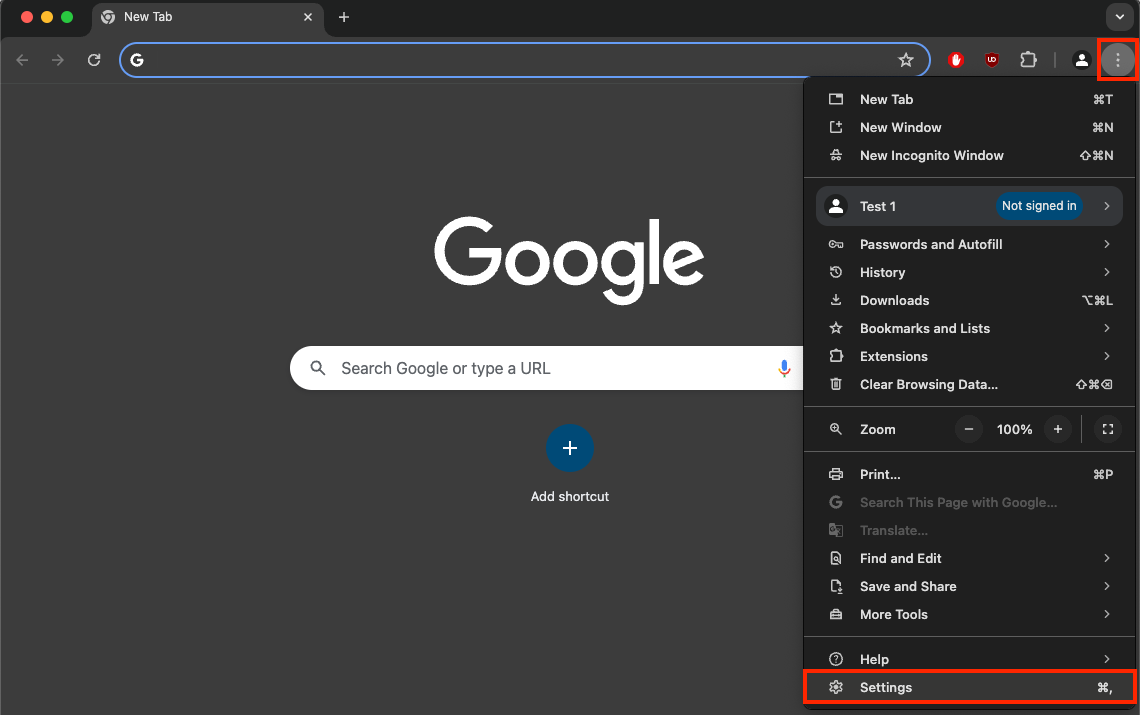
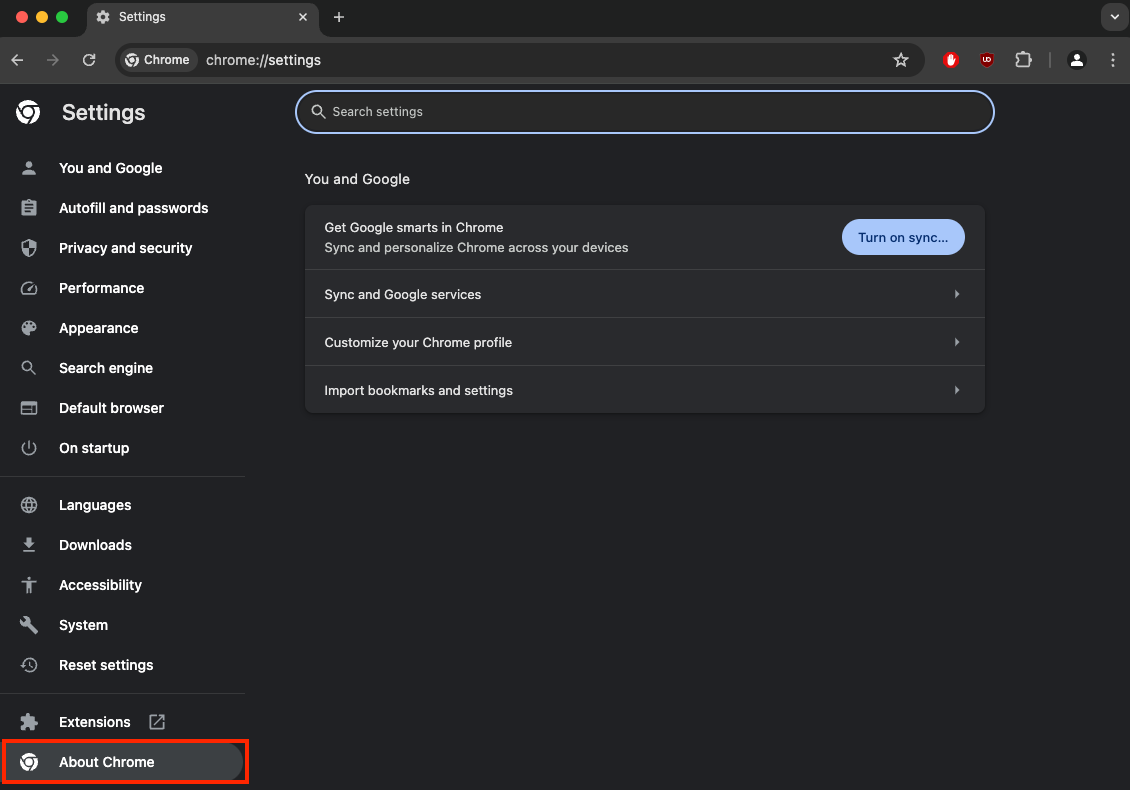
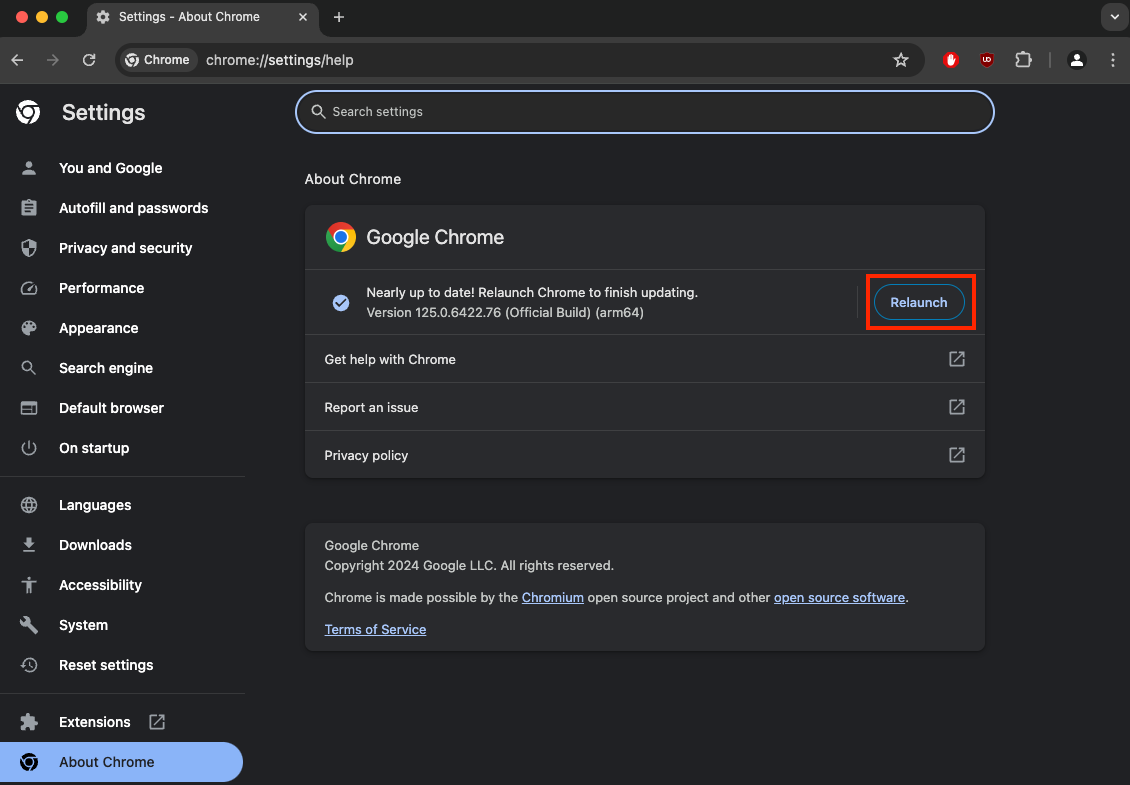
Enabling the browser camera
If a simulation that requires a video connection doesn’t display the camera on the video test page, try these steps to enable it:
- Navigate to site settings. In Chrome, this is chrome://settings/.
- Search for “Site settings” and select it.
- Look for this site. It usually appears near the top, under “Recent activity.”
- Set “Camera” to “Allow.” Even if it already shows “Ask (default),” that may not be enough if permission was denied earlier.
- Return to the video test page and refresh the browser.
The camera should now be detected. If not, contact HBI support (see below).
How to perform a trace route
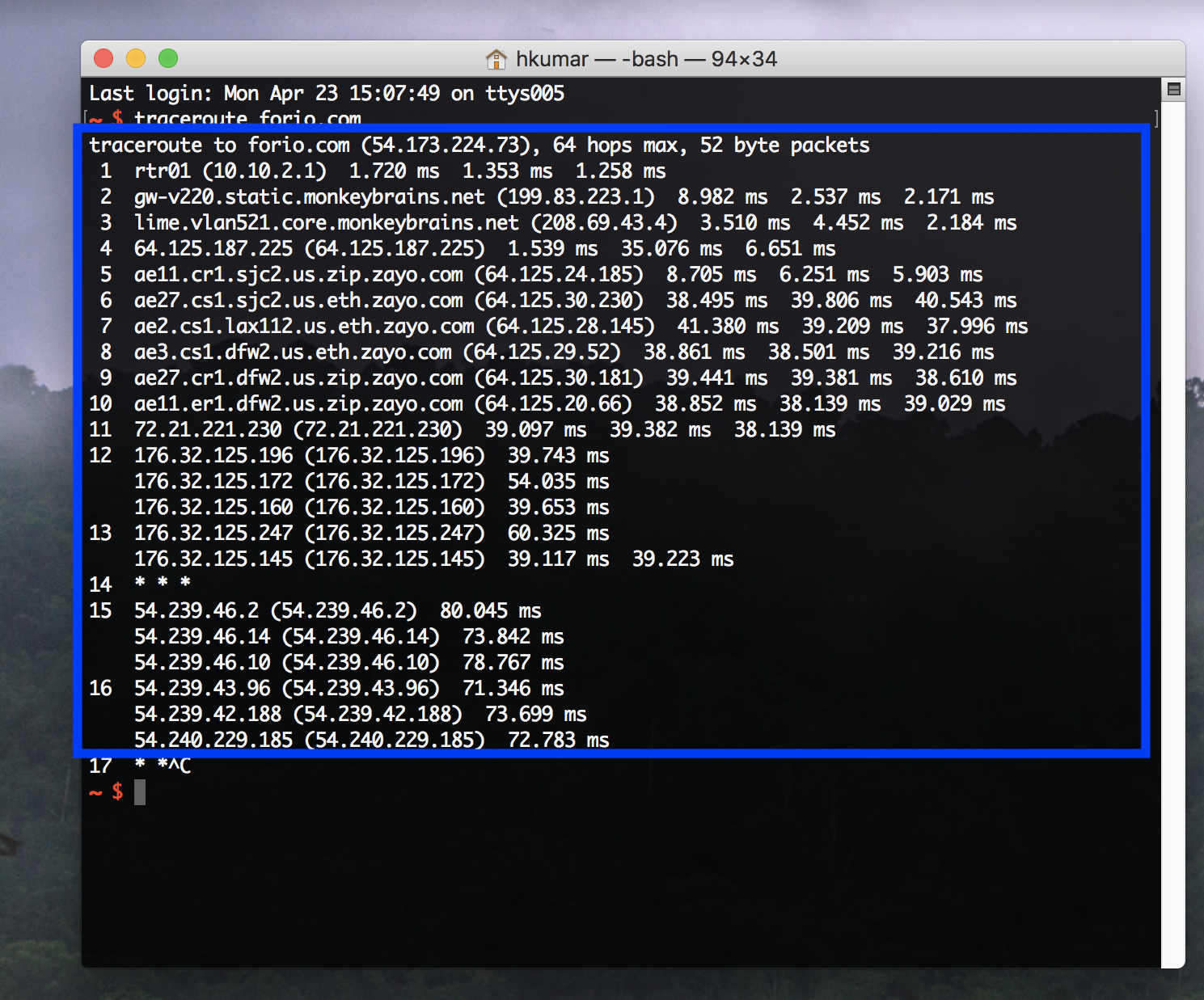
A trace route shows the network path between your device and a website. HBI support may ask for the result when diagnosing a connection problem.
Windows
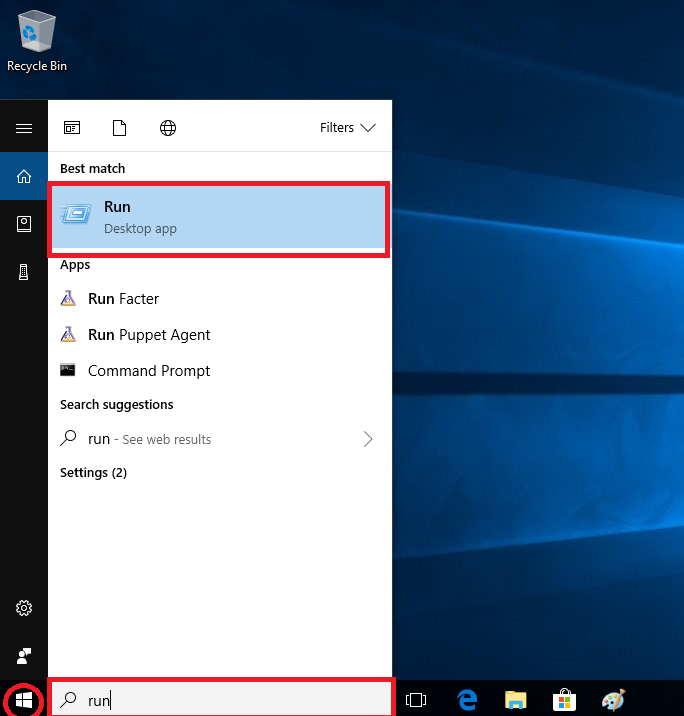
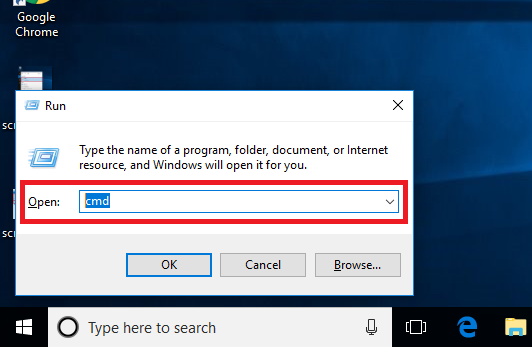
- Open Command Prompt.
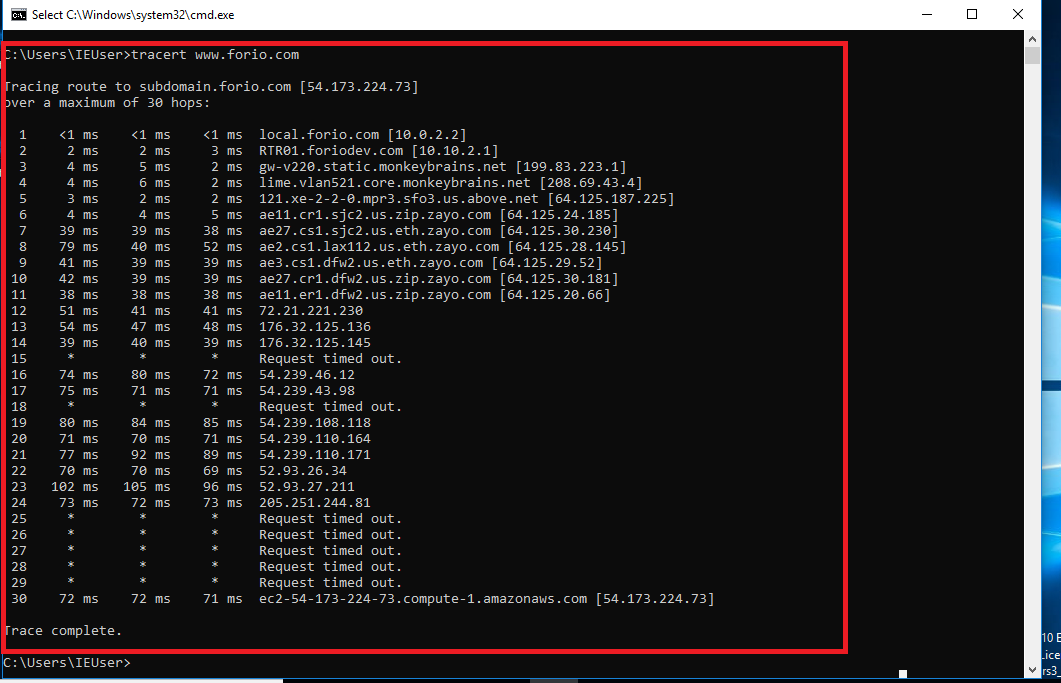
- Run tracert www.forio.com.
- Copy the output and share it with HBI support.
macOS
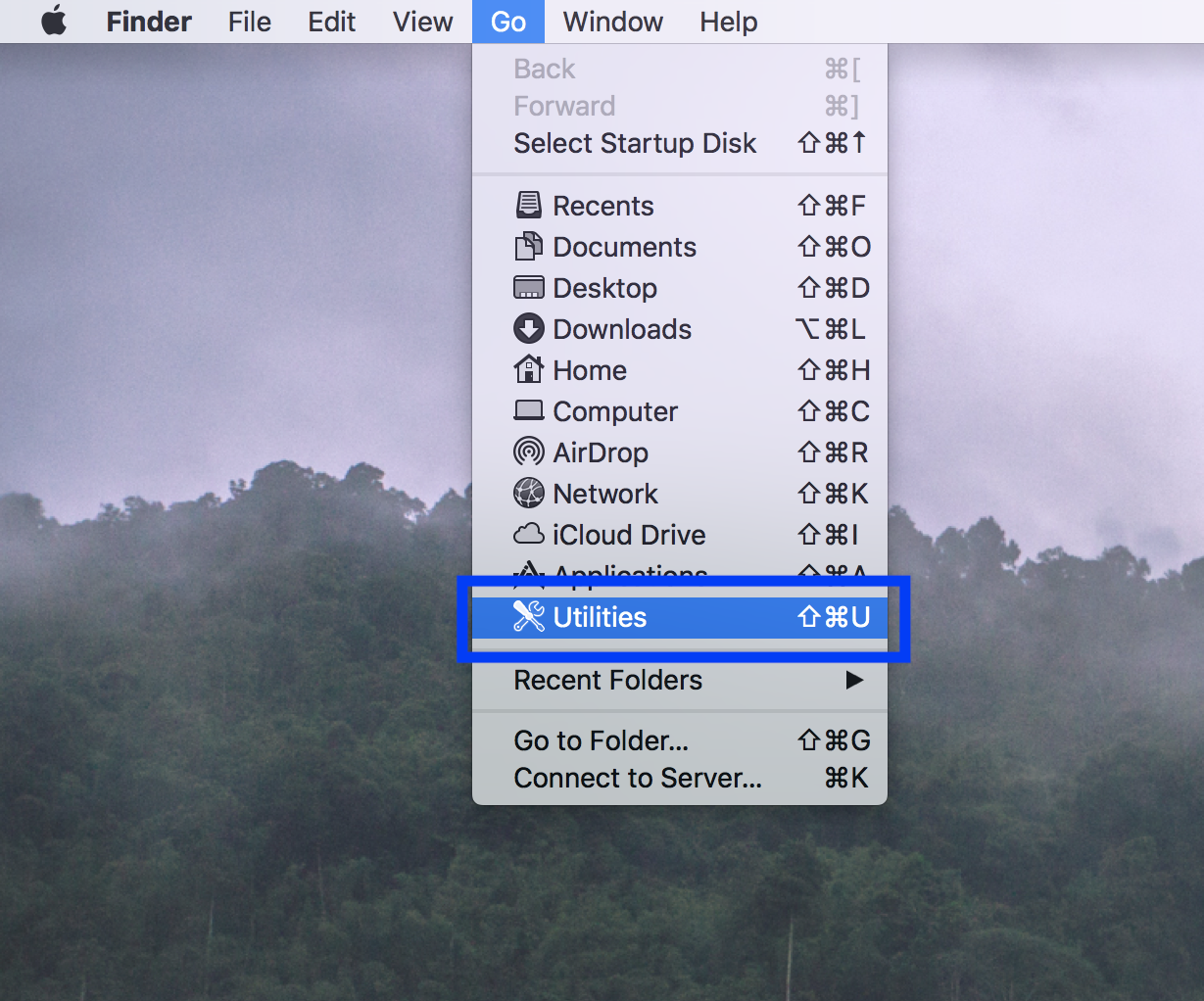
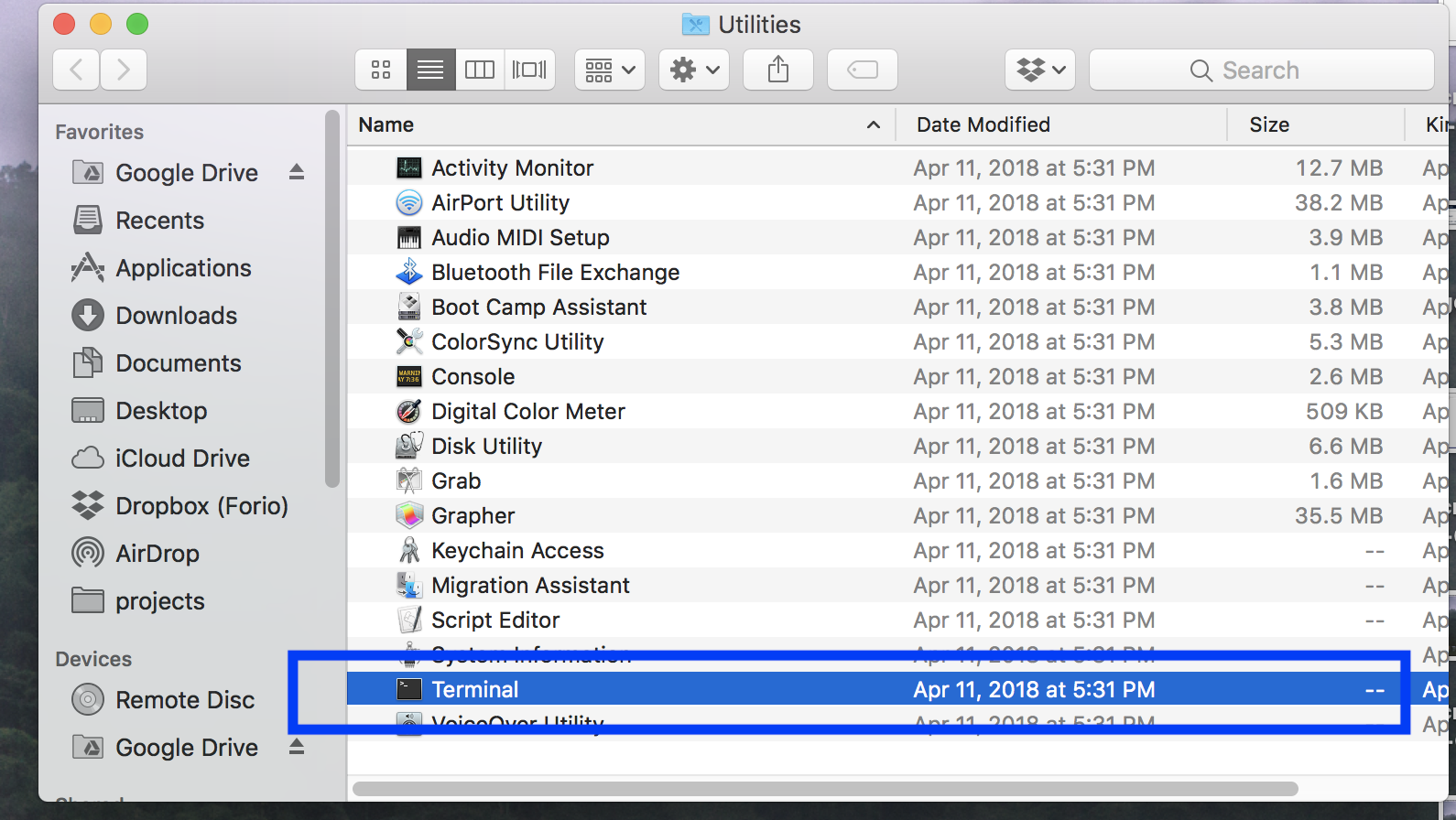
- Open Terminal.
- Run traceroute -I www.forio.com.
- Copy the output and share it with HBI support.
Windows
macOS


How to take a screenshot
Windows
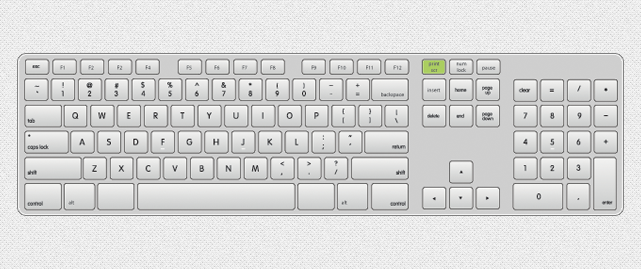
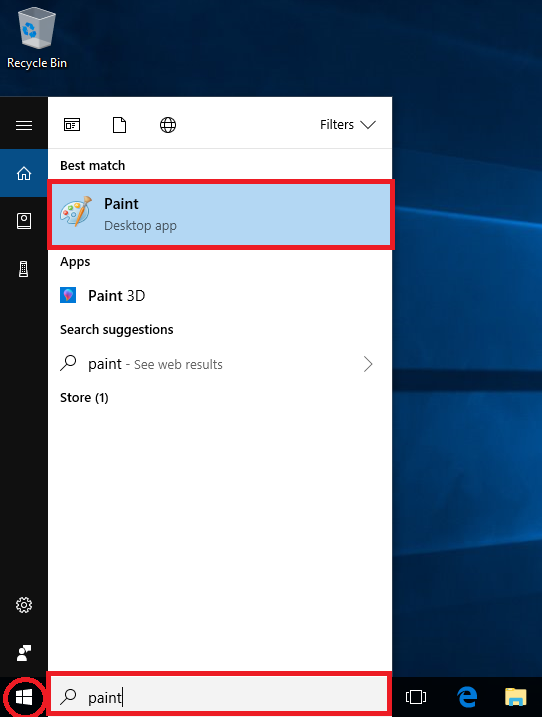
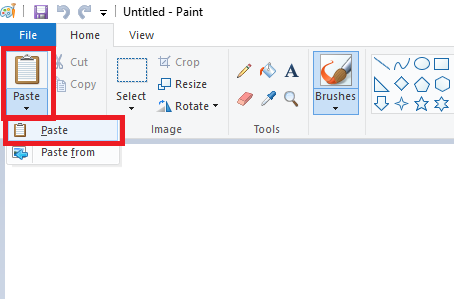
Press Windows + Shift + S, then select the area to capture. Paste the image into your support message.
macOS
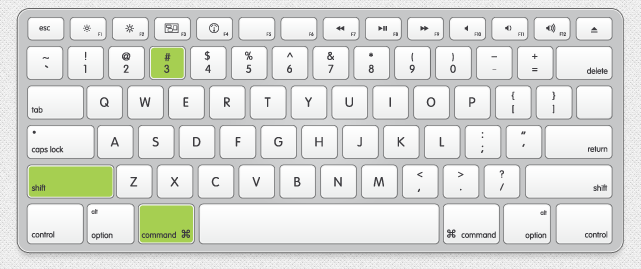
Press Command + Shift + 4, then select the area. The screenshot is saved to your desktop by default.
Windows
macOS
How to clear your browser cache
Open your browser’s settings and search for “clear browsing data” or “clear history.” Select cached images and files, then clear them and reload the simulation. If cookies are failing, also review your browser’s cookie permissions. Clearing cookies may sign you out of other websites.
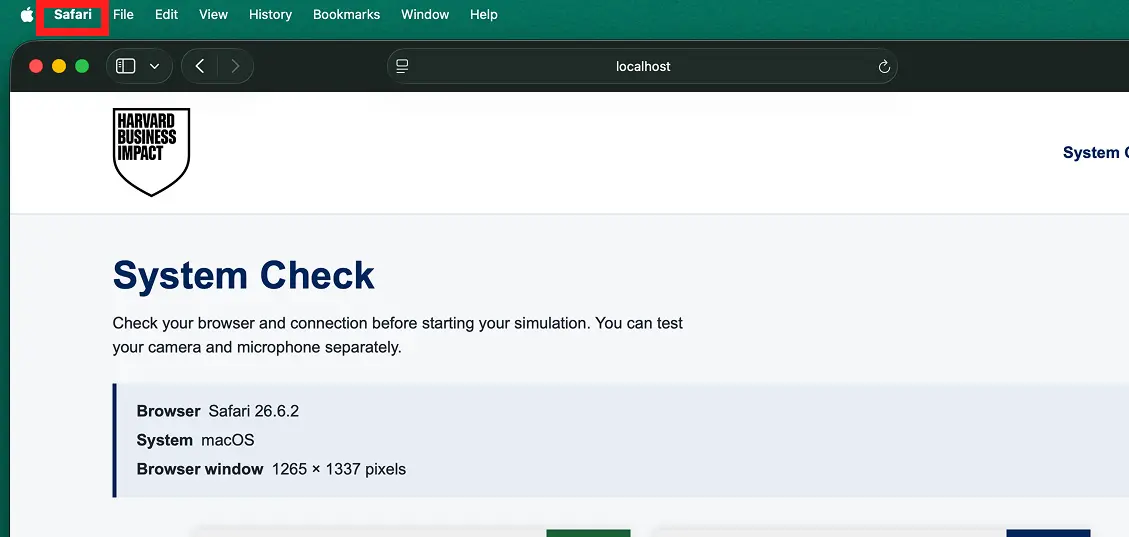
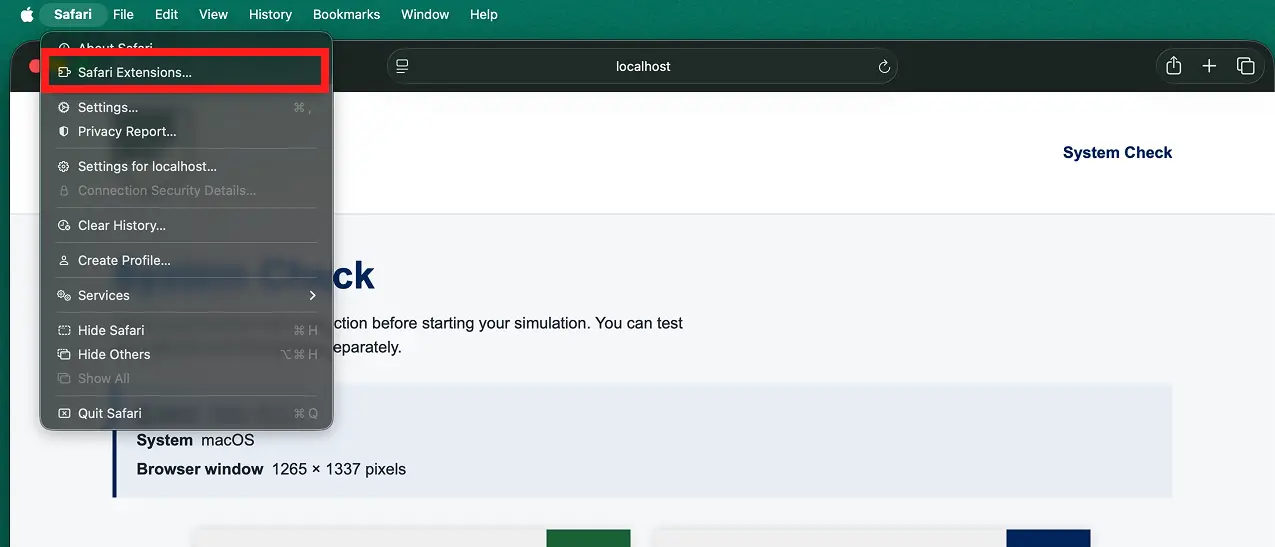
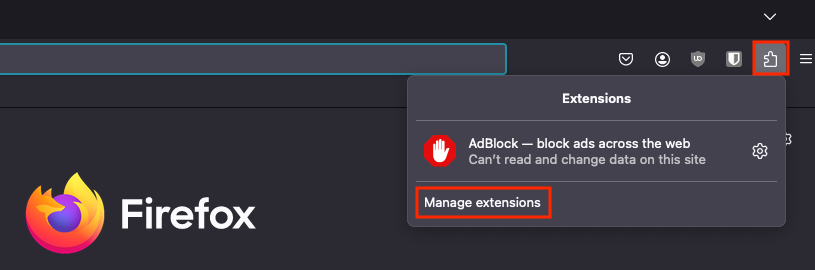
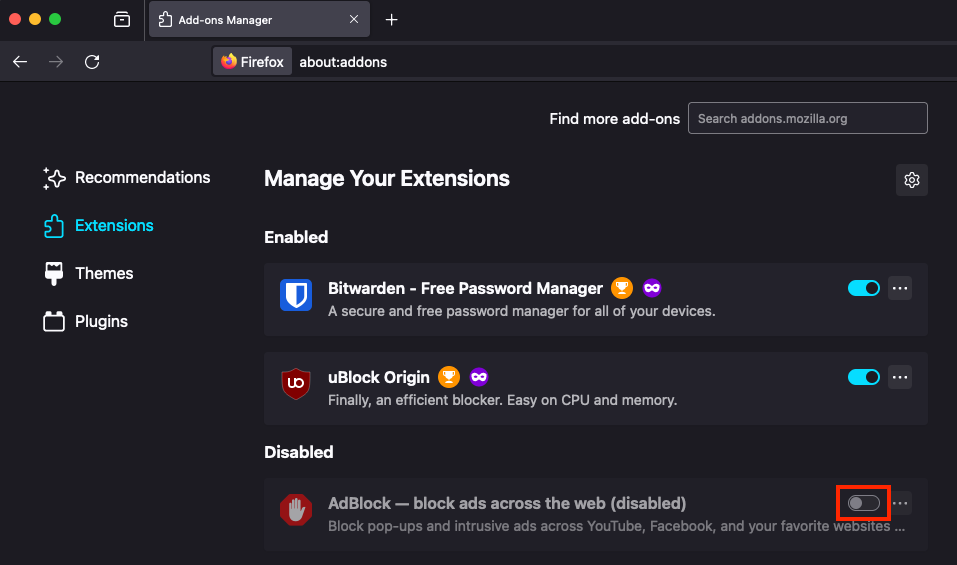
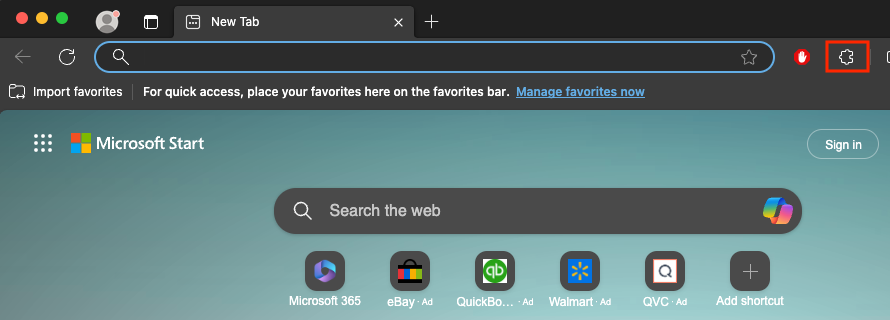
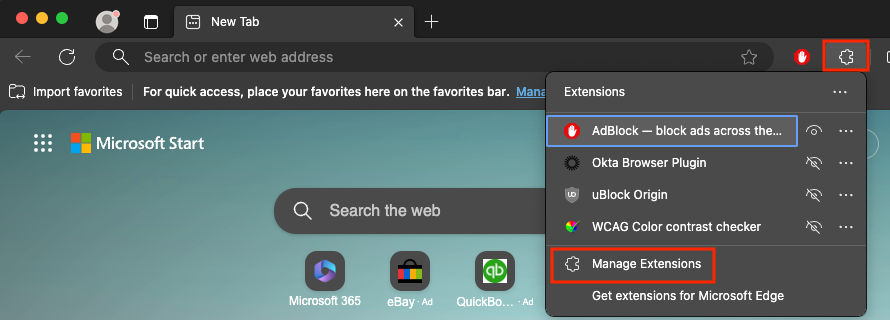
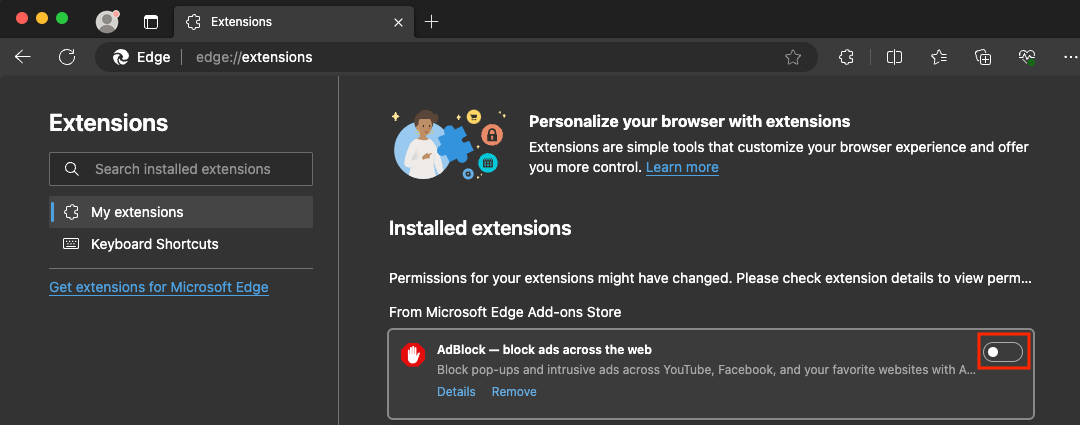
How to turn off ad blockers
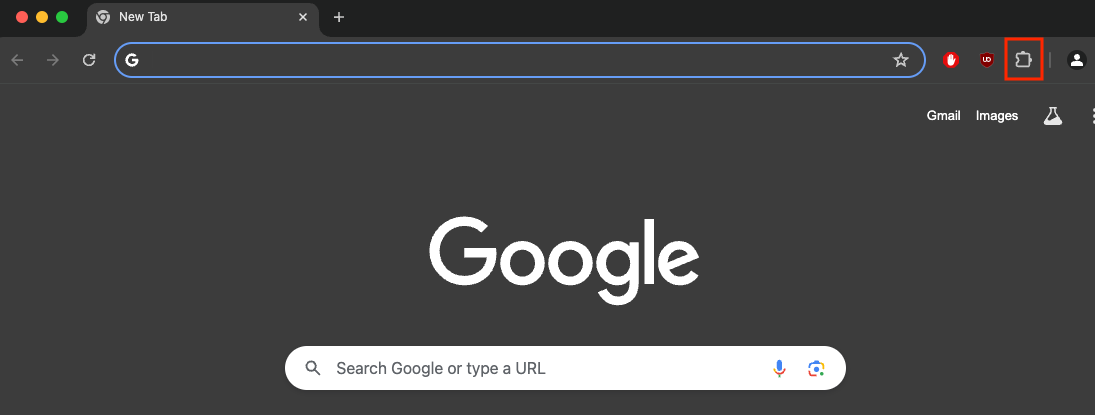
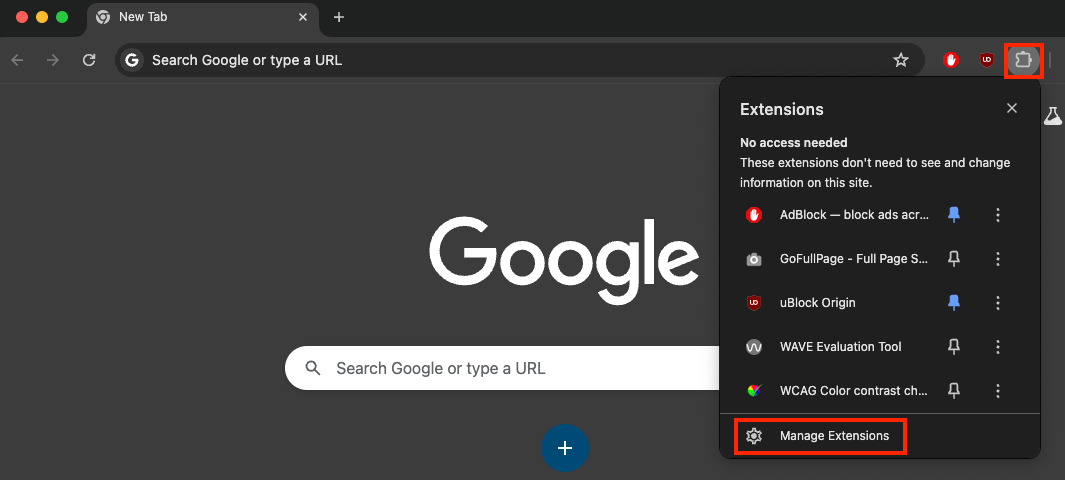
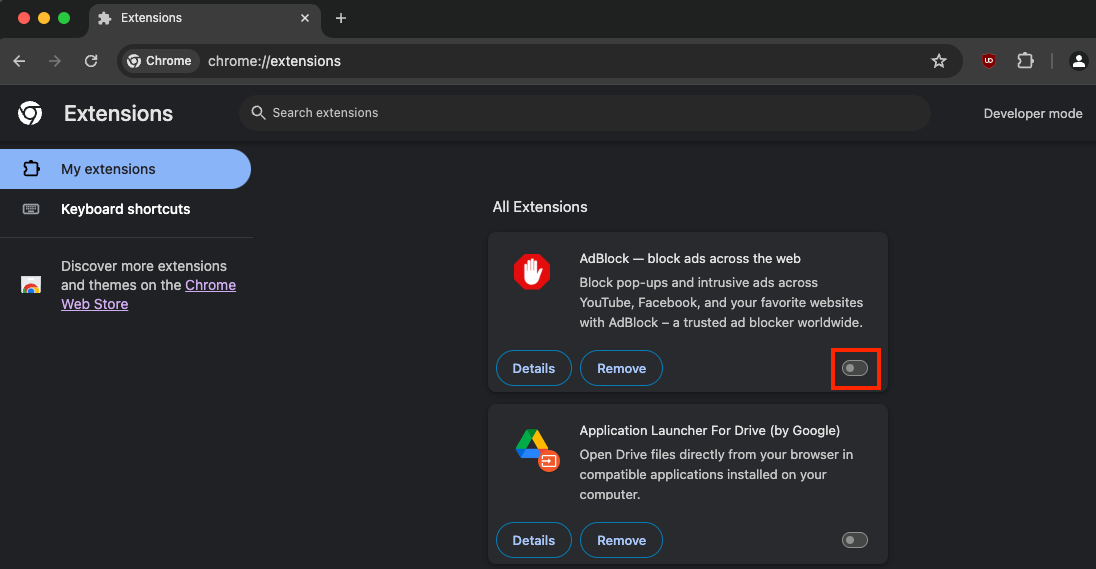
Open your ad blocker from the browser toolbar and allow the HBI simulation site. Reload the page and run the checks again. If your organization manages the blocker, ask its IT team to allow the simulation.
Chrome
Safari
Firefox
Microsoft Edge
Still need help? Contact HBI customer support